
Stop Tapping at the Sky: How to Photograph a Meteor Shower Using Just Your iPhone Timer
Capture meteor showers without missing the show by using a hidden iPhone timer combination that eliminates shake and increases your odds of a stellar shot.


The "Screen Trap" is the single biggest enemy of skywatching photography in 2026. You stand in a dark field, eyes glued to your bright iPhone screen, waiting for a meteor to streak across the constellation Perseus. You see a flash in your peripheral vision, but by the time your thumb taps the virtual shutter button, the shooting star is gone. You are left with a black frame and a creeping feeling of frustration.
I have reviewed thousands of dollars of telescopes and trackers for Spacespiced, yet the most common question I get isn't about focal ratios or aperture. It is about how to capture a fleeting moment with the device already in your pocket. The answer is not a better lens or a third-party app. It is a workflow change that removes you from the equation entirely.
By utilizing your iPhone’s timer in conjunction with the volume buttons, you can hack the shutter mechanism to reduce vibration and automate the burst capture. This method turns your phone into a trap camera, allowing you to actually look up and enjoy the shower while the hardware does the heavy lifting.
Why Touching the Screen Is a Losing Strategy
To understand why the timer method works, you have to understand why the standard tap fails. Modern smartphones, including the iPhone 16 and 17 series, rely on software shutter triggers. When you tap the screen, you introduce two distinct variables that ruin astrophotography: mechanical vibration and processing lag.
Even the slightest press of a finger against the glass creates micro-jitters. During a daytime exposure, these jitters are frozen out by the fast shutter speed. At night, the sensor needs to gather light for longer. If you are holding the phone or if it is on a slightly unstable tripod, that touch translates to a blurry star trail where a sharp point should be. Worse, the screen acts as a light source. Looking at it destroys your night vision, which takes about 20 to 30 minutes to fully adapt. You are literally blinding yourself to the very event you are trying to photograph.
I learned this the hard way back in 2020. I missed the Great Conjunction entirely because I was too focused on the viewfinder and tripod adjustments. By the time I stopped fiddling with settings, the planets had dipped below the tree line. The timer method solves the physical shake issue and, more importantly, forces you to step away from the device.
Step 1: The Physical Setup Must Be Rigid
Before you open the Camera app, you need to address the physics of stability. Your phone cannot move. Not even a little. You have two viable options here that pass the 'beginner-friendliness' check.
The first is a traditional tripod with a smartphone mount. This is ideal. The second, which I actually prefer for meteor showers, is the "Bean Bag" method. Take a sock, fill it with rice or uncooked beans, and tie it off. Place this makeshift saddle on a rock, the hood of your car, or a fence post. Nestle your phone into it.
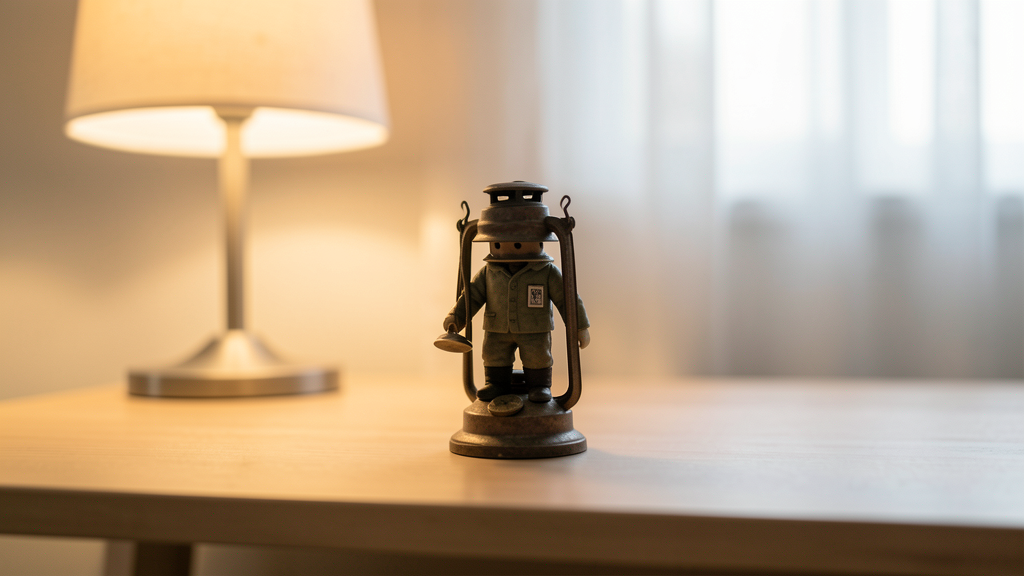
Crucially, you must remove your phone case if it is thick rubber. Thick cases dampen the phone's connection to the tripod or bean bag, making the device wobble like a jelly mold when the shutter fires. A naked phone or a slim hard-shell case is best for astrophotography. Once the phone is seated, visually inspect the lens angle. You want it pointing about 45 to 60 degrees up from the horizon, generally facing away from the Moon if there is one.
Step 2: Locking Down Exposure and Focus
Auto-exposure is the enemy of stars. The iPhone's brain wants to make the night look like day. It will pump up the ISO, resulting in a noisy, grainy image that washes out the faint streaks of meteors. You need to force the camera to capture the scene as it actually is.
Open the native Camera app and set it to Photo mode—not Night Mode. Night mode is fantastic for static landscapes, but it often engages multi-second exposure times. A meteor moves across the sky in a fraction of a second. A 3-second Night Mode exposure will likely turn the meteor into a faint, ghostly smudge or miss it entirely. You want a faster exposure time if possible, usually around 1 second or less.
To achieve this, tap and hold your finger on the brightest star in the frame or a distant light source until you see the yellow "AE/AF LOCK" banner appear at the top of the screen. This locks your focus to infinity (or near it) and locks the exposure. Once that lock is active, a sun icon with a slider will appear next to the focus box. Slide it down. Keep sliding it down until the image on the screen looks darker to your eye than the sky actually is. The stars will pop out brighter on the final image than they appear on the dimmed screen.
Step 3: The Timer-and-Volume Hack
This is the specific workflow that solves the problem. Most users set a timer, press the shutter, and wait for a single photo. That is inefficient for meteor showers. You want to capture a burst of images to increase the statistical probability that one frame contains a shooting star.
Here is the sequence you must execute:
- Set the Timer: Tap the clock icon at the top of the screen in Photo mode. Select "3s". Do not select 10s; too much can happen in ten seconds, and you might lose your composition.
- Prepare the Trigger: Do not tap the large white circular shutter button on the screen. Instead, place your thumb or finger on the physical Volume Up button on the side of the phone.
- Engage: Press the Volume Up button firmly. The timer will start its countdown on the screen.
- The Burst Trigger: While the timer is counting down 3... 2... 1..., press the Volume Up button again and hold it down.
Here is the magic: by holding the Volume Up button during the countdown, you tell the iOS system that as soon as the timer ends, you do not want just one photo. You want a Burst Mode sequence. The phone will wait for the vibration of the initial button press to settle (those 3 seconds), and then it will rapid-fire a series of shots.
This removes the human element entirely. You are not touching the glass when the shutter opens. You are not guessing the moment. You are firing a machine gun at the sky for a few seconds. Once the burst finishes, lift your thumb. You can now repeat this process without ever looking at the screen, just counting the clicks.
Framing for Luck, Not Certainty
Many beginners aim directly at the "radiant"—the point in the sky where the meteors appear to originate. This is usually a mistake for photography. Meteors that appear right at the radiant are difficult to photograph because they are moving directly towards you, appearing as short dots rather than beautiful streaks.
For the best results, aim your iPhone about 30 to 45 degrees away from the radiant. If you are watching the Perseids, for example, do not point straight at Perseus. Point at Cassiopeia or the Summer Triangle. The meteors will streak across your frame with longer, more photodynamic trails.
Be mindful of light pollution. If you are near a city, point away from the orange glow. The sensor on your iPhone is small compared to a DSLR, and it cannot handle extreme contrast well. Understanding the difference between a Supermoon's brightness and a regular moon is helpful here; a brighter sky washes out fainter meteors. You need the darkest patch of sky you can find, even if it means pointing slightly away from the absolute center of the action.
Managing the Results and Storage
A word of warning: this method eats storage space. Burst mode on the latest iPhones captures 10 frames per second. Doing this for an hour can fill up your 128GB model quickly. Be ruthless with your curation. When you review your photos the next morning, do not try to save every blurry star.
Look for the needle in the haystack. You are looking for a thin, diagonal line that wasn't there in the previous frame. Once you find it, you can select that specific frame in the burst (tap "Select" in the gallery view) and save it as an individual image.
Do not expect the raw image to look like a NASA composite. It will be a dark photo with a faint line. This is where the "Edit" function comes in. Use the " Brilliance" and "Exposure" sliders sparingly to lift the shadows. Do not over-crank the "Contrast" or you will introduce noise artifacts that look like digital snow. The goal is to make the meteor visible, not to turn night into day.
The Trade-Off of Convenience
I need to be honest about the limitations of this method. An iPhone sensor is physically tiny. It collects less light than a dedicated full-frame camera. You will not capture the intricate colors of a meteor—the teals, violets, and fiery reds that a dedicated sensor with a wide-aperture lens can see. Your iPhone meteor will likely look like a white or faint grey streak.
However, the trade-off is experience. By using the timer and burst mode, you regain your eyes. You can sit back on a camping chair, drink some coffee, and actually watch the shower with your own eyes rather than staring at a digital preview. That connection to the universe is what skywatching is actually about.
I would rather have a decent, grainy photo of a meteor I saw with my own eyes than a perfect 4K image of one I missed because I was staring at a viewfinder. This timer method bridges that gap. It captures the memory without sacrificing the moment.
A Final Thought on Data vs. Memory
As we move further into the 2020s, the urge to document everything has paradoxically made us miss more. We rely on the screen to validate our reality. But meteors are ephemeral; they are physics in motion, burning up at 130,000 miles per hour. They do not wait for ISO settings.
By shifting your workflow to the timer hack, you are essentially trusting the machine to do its job so you can do yours: witnessing the event. Whether or not you catch the "perfect" shot is irrelevant compared to the fact that you were there, present, watching the sky instead of your screen. That is a victory in itself.
Read next
The Gear Trap: How I Missed the Great Conjunction by Trying Too Hard
A detailed account of how overcomplicating my setup caused me to miss a once-in-a-lifetime sky event, and the framework I use to choose gear wisely now.

Can You Actually See the Difference Between a Supermoon and a Regular Full Moon?
We break down the optical physics and perceptual psychology behind the supermoon hype to find out if your eyes are seeing a celestial giant or just media spin.